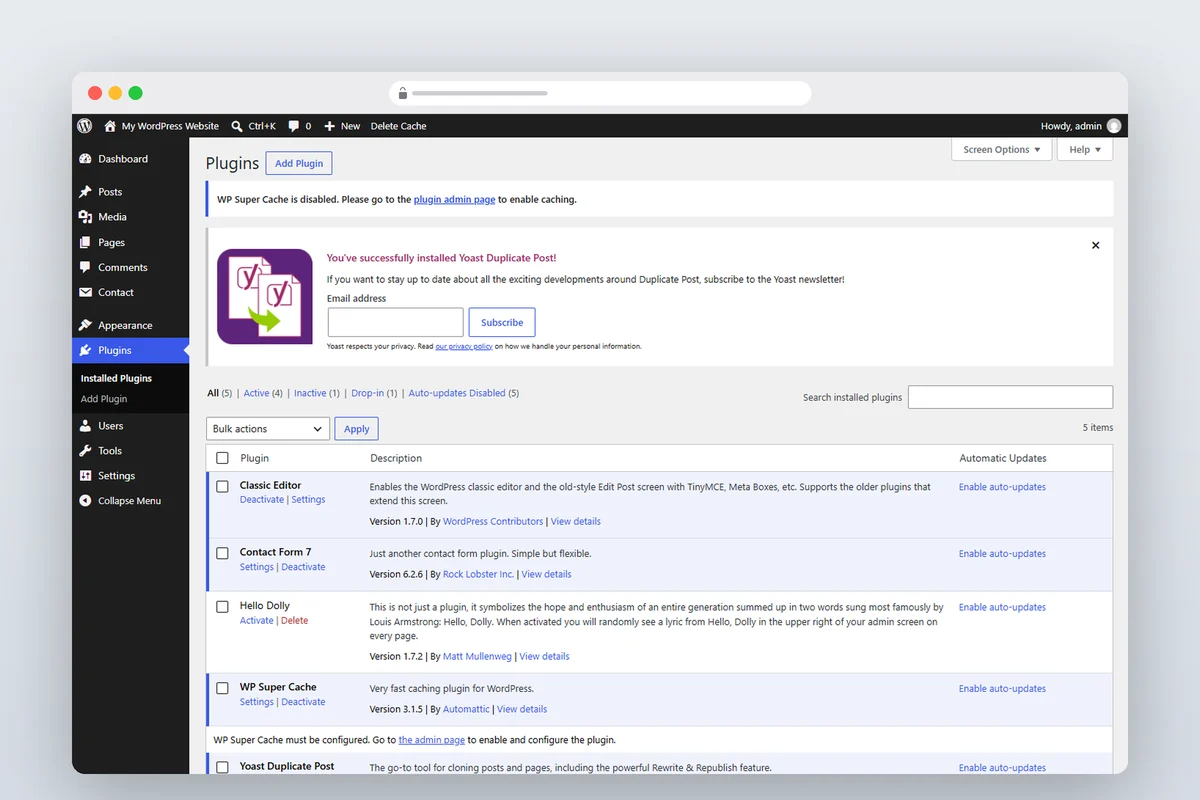
A plugin conflict happens when two plugins, or a plugin and your theme, try to change the same thing in ways that do not work together. To find it, back up the site first. Then use the free Health Check & Troubleshooting plugin to switch plugins off for your own login only, and turn them back on one at a time, or half at a time, until the problem comes back. The last plugin you turned on is the cause. Then update it, roll it back, or replace it.
First, the reassuring part
When a WordPress site breaks after an update, it feels like the whole thing has gone. Usually it has not. Your pages, posts and images are stored in the database and the uploads folder, and a misbehaving plugin rarely touches either. What has broken is the code that runs when the page loads, and that can be switched off.
So before you click anything else, do two things.
- Note the time it broke and what you did just before. Did you update plugins? Install a new one? Did your host send an email about upgrading PHP? You will use this later, and it often points straight at the cause.
- Take a backup, files and database, from your hosting control panel or your backup plugin. If your host offers a staging copy of the site, do your testing there. If the site is broken badly enough that you cannot reach the dashboard, ask your host for their latest automatic backup.
What you might be seeing, and what usually causes it
Find the symptom that matches yours. It will not always be right, but it tells you where to look first.
Your layout broke, or sliders, menus and pop-ups stopped working
This is often an optimisation or caching plugin. Settings that "combine", "minify" or "delay" JavaScript can stop sliders, menus, pop-ups and forms from loading properly. It gets worse when two caching tools are running, for example a caching plugin plus your host's built-in cache with the same options turned on. Keep one optimisation tool, turn off JavaScript combining or delaying, clear the cache and check again.
Everything looks fine, but your SEO suddenly seems wrong
Two SEO plugins active at the same time can each output a title, a description, a canonical tag and schema. Visitors see nothing odd. Google gets two sets of instructions. This often happens when someone tries a new SEO plugin and forgets to remove the old one. Keep one, use its import tool to bring the settings across, and then remove the other.
The page builder will not load, or widgets have disappeared
Add-on packs for Elementor and other builders rely on the builder's own code. When the builder updates first and the add-on has not caught up, the editor can hang on a loading screen or widgets can vanish from pages. Update the add-on. If no update exists yet, roll the builder back to the version that worked until the add-on catches up. Each add-on pack you remove is one fewer thing that can break this way. (If you are choosing a builder for a new site, our Bricks Builder vs Elementor comparison explains how the two builders differ.)
Your contact form, checkout or "Load more" button stopped working
Security and firewall plugins sometimes block the background requests that forms, builders and checkouts depend on. These are called AJAX and REST API requests, and you never see them happen. Open your security plugin's log, look for something blocked at the time of the error, and allow that action.
"There has been a critical error on this website" after your host upgraded PHP
Hosts upgrade PHP, the language WordPress runs on, every so often. A plugin that its developer stopped updating years ago may not work on the newer version. Look the plugin up on WordPress.org and check its "Last updated" date and "Tested up to" version. If it has been abandoned, replace it. Patching it will only buy you time.
Two plugins seem to be fighting over the same job
Two image optimisers, two lazy-loading plugins, or two form plugins that both send email can interfere with each other. WordPress has lazy-loaded images on its own since version 5.5, so a separate lazy-loading plugin is often not needed at all. One plugin per job is a good rule.
The problem goes away when you change theme
Some themes bundle features that are also available as plugins, such as sliders, page builders or SEO settings. When both versions run, they can collide. You can test this safely in Troubleshooting Mode, described below.
Finding the plugin, step by step
Read the email WordPress may have sent you
Since WordPress 5.2, when a plugin or theme causes a fatal error, WordPress emails the site's admin address. The email describes the error and includes a link to log in using Recovery Mode. Check your inbox and spam folder. The email often names the plugin, which may save you all the steps below. Then look at Tools → Site Health in the dashboard for warnings.
Turn on the debug log
If there is no email, ask WordPress to write its errors to a file. Open wp-config.php through your host's file manager or FTP and add these lines above the line that says "That's all, stop editing!":
define( 'WP_DEBUG', true );
define( 'WP_DEBUG_LOG', true );
define( 'WP_DEBUG_DISPLAY', false );
Reload the broken page, then open wp-content/debug.log. Error lines usually include a path such as /wp-content/plugins/plugin-name/..., and the folder name tells you which plugin it is. The last line, WP_DEBUG_DISPLAY set to false, keeps the errors out of sight of your visitors. When you are finished, remove the lines or set WP_DEBUG back to false.
Test with Troubleshooting Mode, so your visitors see nothing
Turning plugins off one by one on a live site can break it for your visitors while you test. Troubleshooting Mode avoids that. Install the free Health Check & Troubleshooting plugin from WordPress.org (Troubleshooting Mode is also available as a separate plugin). Go to Tools → Site Health → Troubleshooting and enable it.
For your login only, every plugin is switched off and a default theme is used. Everyone else still sees the normal site. Now use the Troubleshooting menu in the admin bar to turn plugins back on one at a time, checking the problem after each one. When it comes back, you have found the plugin.
Two things to know before you start:
- If you run a WooCommerce shop, Troubleshooting Mode does not switch your payment gateway into test mode. If you place a test order, it takes a real payment.
- Clear your cache when you finish, so visitors do not get a cached copy of a page from your testing.
Got 25 plugins? Test them in halves
Turning plugins on one at a time is slow when you have many. Turn half of them on at once. If the problem comes back, the cause is in that half. If it does not, the cause is in the other half. Keep halving the group that contains the problem. With 20 plugins, this finds the cause in about five rounds instead of up to twenty.
Locked out of the dashboard completely?
Connect with FTP or your host's file manager and open wp-content/plugins/. Rename the folder of the plugin you suspect, for example contact-form to contact-form-off. WordPress cannot find it, so it switches it off. If you have no idea which plugin it is, rename the whole plugins folder, log in, rename it back, and then turn plugins on one by one from the dashboard.
Once you know which plugin it is
- Update the plugin, your theme and WordPress itself. The conflict may already be fixed in a newer version.
- Roll back to the version that worked, from your backup, while you wait for a fix.
- Tell the developer. Post in the plugin's support forum on WordPress.org and include the error line from
debug.log. Developers can only fix what they can see. - Replace it if it is abandoned or keeps breaking your site.
Mistakes that turn a small problem into a big one
- Switching plugins off on the live site with no backup. Some plugins delete their settings when you deactivate them.
- Leaving error display on. With
WP_DEBUG_DISPLAYset totrue, visitors see your server's file paths in the error messages. - Updating everything at once. Update a few plugins at a time. If something breaks, you will know which update did it.
- Installing another plugin to fix the first one. Every plugin you add is one more that can conflict. Try removing one before you add another.
If your site is down and you are running out of time
If customers cannot reach you, your shop cannot take orders, or the error log means nothing to you, it is fine to hand it over. IB NOVA's Fix & Refresh package covers WordPress fixes like broken forms and pages at a fixed price. You will also get a written note of what was wrong and what was changed, so the same thing is less likely to catch you out next time.
Questions
How do I know if it is a plugin conflict or a theme problem?
In Troubleshooting Mode, with all plugins off, switch between a default theme and your own theme. If the problem appears only with your theme active, the theme is involved.
Will Troubleshooting Mode affect my visitors?
It is designed to affect only your logged-in session. Clear your cache afterwards. On a shop, avoid testing during busy hours, because payments are not switched to test mode.
Can a plugin conflict hurt my speed or SEO without showing an error?
Yes. Two SEO plugins can output duplicate tags, and two optimisation plugins can slow pages down. View the page source and run PageSpeed Insights to check.
How many plugins is too many?
There is no fixed number. What matters is how well each plugin is maintained and whether two of them are doing the same job.
Sources

A web studio building WordPress and Bricks Builder websites, AI websites and SEO for small businesses worldwide. About IB NOVA